
Azure
Azure Monitor: Forward Azure Backup Alerts to Email
Overview
This guide explains how to configure Azure Monitor to send email notifications when built-in alerts are triggered for resources such as Recovery Services Vaults.
Naming note: Always follow the organisation’s Cloud Naming Convention. The examples below are placeholders and should be adapted to the governance standard used by the tenant.
Why Azure Monitor email alerts matter
Backup jobs, platform services and Recovery Services Vaults can generate alerts when something requires attention. Without a notification mechanism, administrators may only discover issues after backups have been failing for several days.
By using Azure Monitor action groups and alert processing rules, alerts can be routed to a shared mailbox, service desk or monitoring team.
- Backup jobs that fail repeatedly
- Recovery Services Vault issues
- Azure Service Health incidents
- Resource availability problems
- Security-related platform alerts
Steps
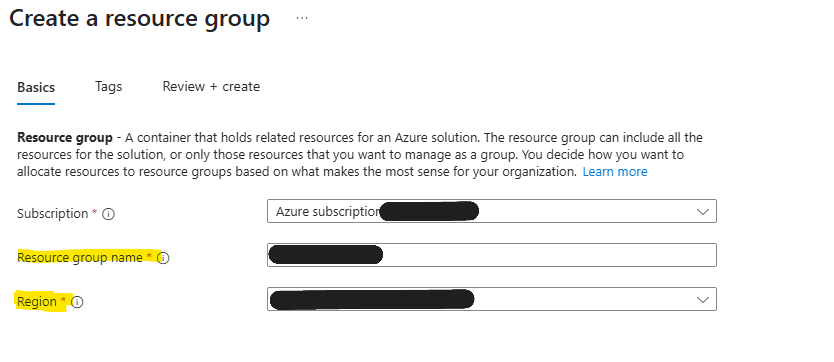
Step 1: Create a shared monitoring resource group
Use a shared resource group to store monitoring resources such as action groups and alert processing rules.
- Go to Resource Groups in the Azure portal.
- Select Create.
- Use a name such as
rg-backupalerts-weu-prod. - Choose a central region, for example West Europe.
- Select Review + Create.
Step 2: Create an action group for email alerts
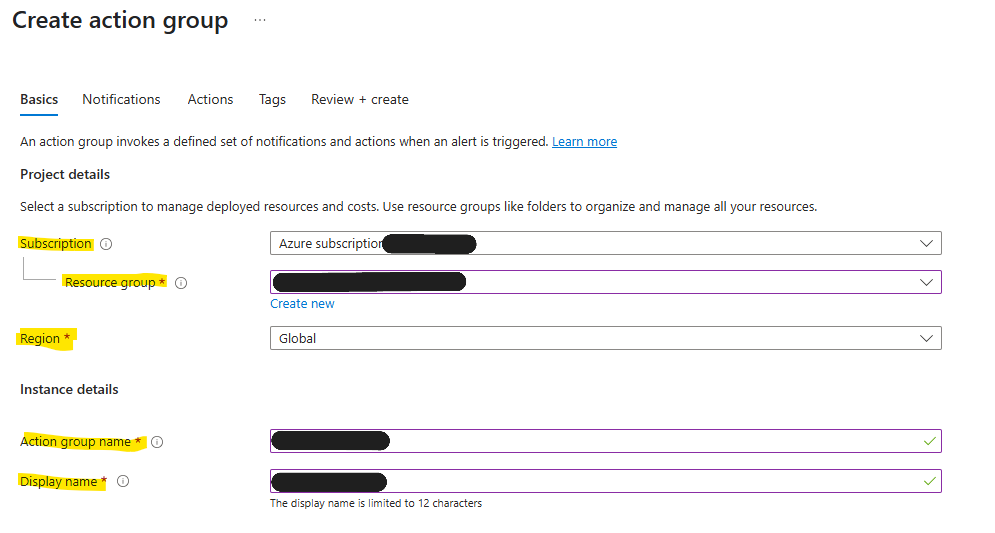
The action group defines where alert notifications are sent. For this use case, that is typically a shared mailbox or support queue.
- Go to Monitor > Alerts > Manage action groups.
- Select Create.
- Select the shared monitoring resource group.
- Use an action group name such as
ag-backupalerts-weu-prod. - Use a display name such as
mailalerts.
Small grumpy note: The display name is shown in alert notifications and some notification channels. The field is limited to 12 characters, which is just enough to be slightly useful and slightly annoying.
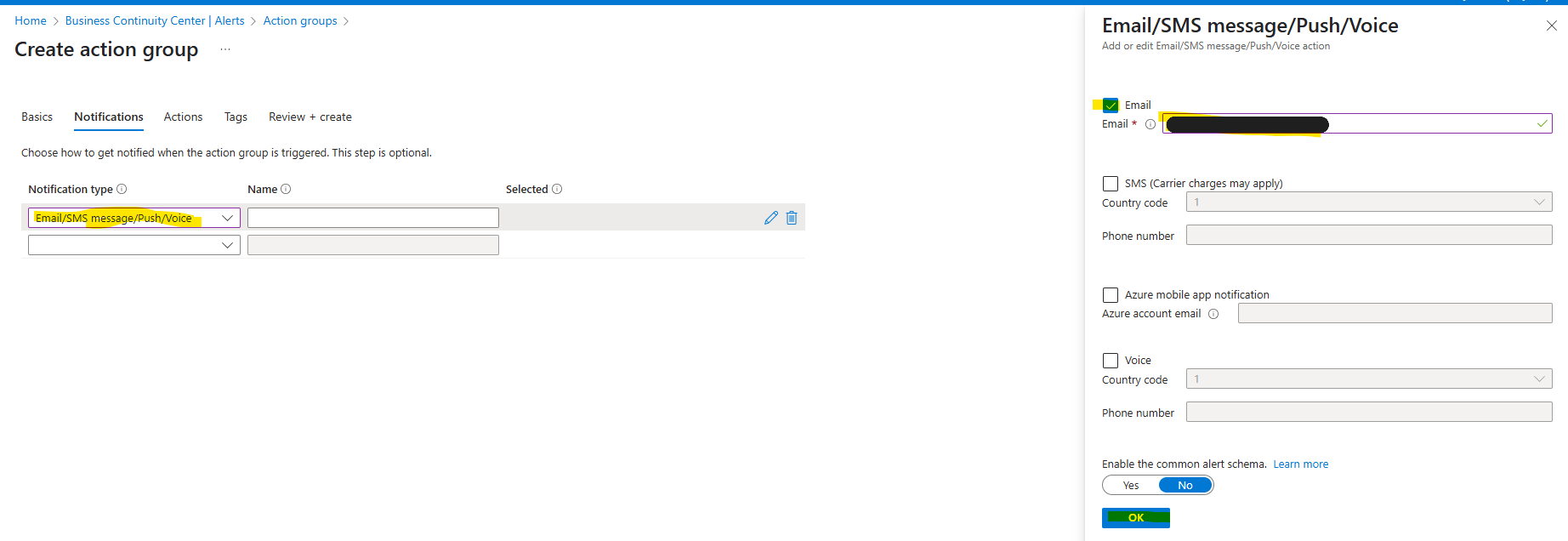
In the Notifications tab, select Email/SMS message/Push/Voice, enable email and enter the alerting mailbox.
Step 3: Create an alert processing rule
Create an alert processing rule for each resource group or scope where the monitored vaults or resources live.
- Go to Monitor > Alerts > Alert Processing Rules.
- Select Create.
- In Scope, select the subscription or specific resource group.
- Use filters to control which alerts should trigger notifications.
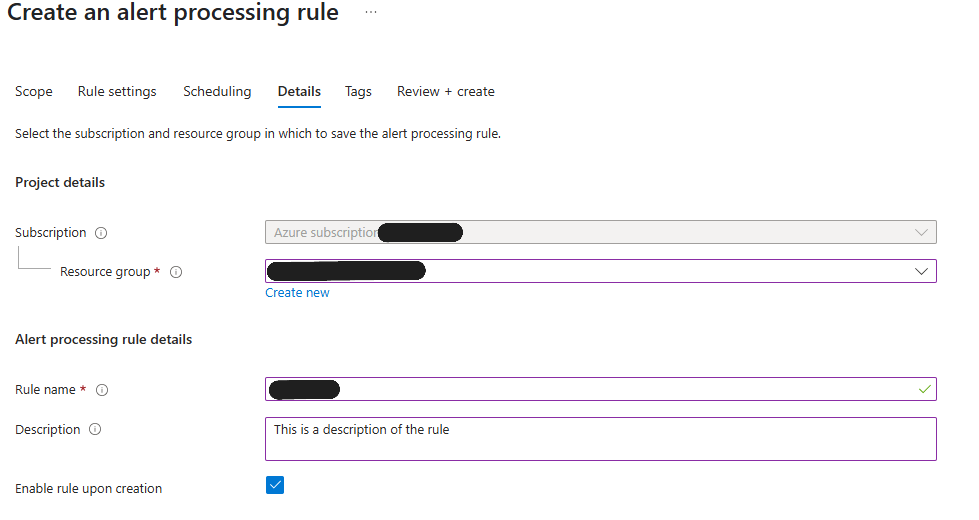
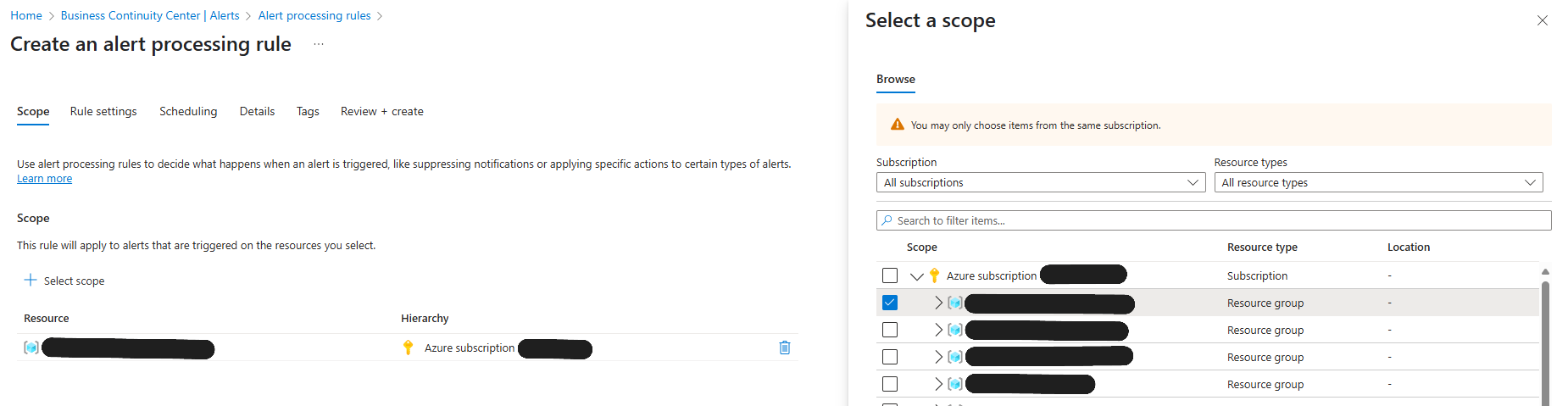
In Rule settings, select Apply action group and select the action group created earlier. In Scheduling, use Always unless a specific schedule is needed.
In Details, store the rule in the shared monitoring resource group, add a clear rule name and enable the rule on creation.

Final architecture
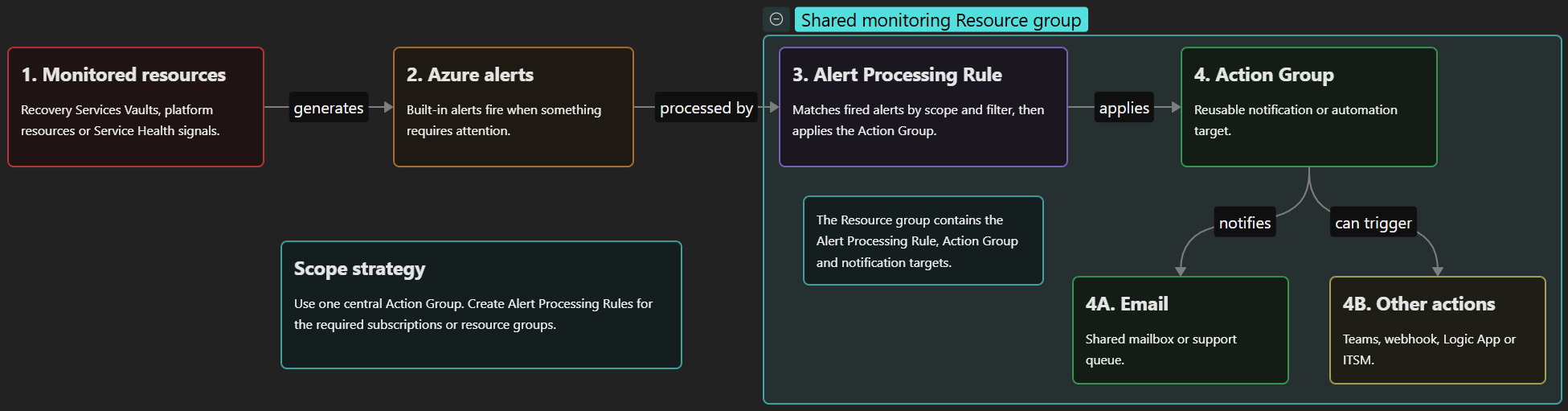
The architecture uses built-in Azure alerts, scoped alert processing rules and a reusable action group to send email notifications without configuring each resource individually.
Considerations
Managing multiple resource groups
Many environments contain several Recovery Services Vaults spread across different resource groups. Instead of creating individual email notifications for each vault, create one central action group and one alert processing rule per resource group.
Filtering alerts
Alert processing rules are useful when only a subset of alerts should generate notifications.
| Setting | Value |
|---|---|
| Monitor Service | Azure Backup |
| Severity | Error |
This setup helps avoid informational backup messages while still forwarding backup failures.
Why not configure notifications directly on the alert?
Built-in Azure Backup alerts do not always allow centralised notification management. Alert processing rules provide a scalable way to route alerts from multiple resource groups and workloads to a single action group without modifying the underlying alert configuration.
Required fields are marked *